
Small Business Guide
ADA Website Compliance Checklist for Small Businesses
A practical ADA website compliance checklist for small businesses, with the highest-impact accessibility checks, testing steps, and a simple action plan.
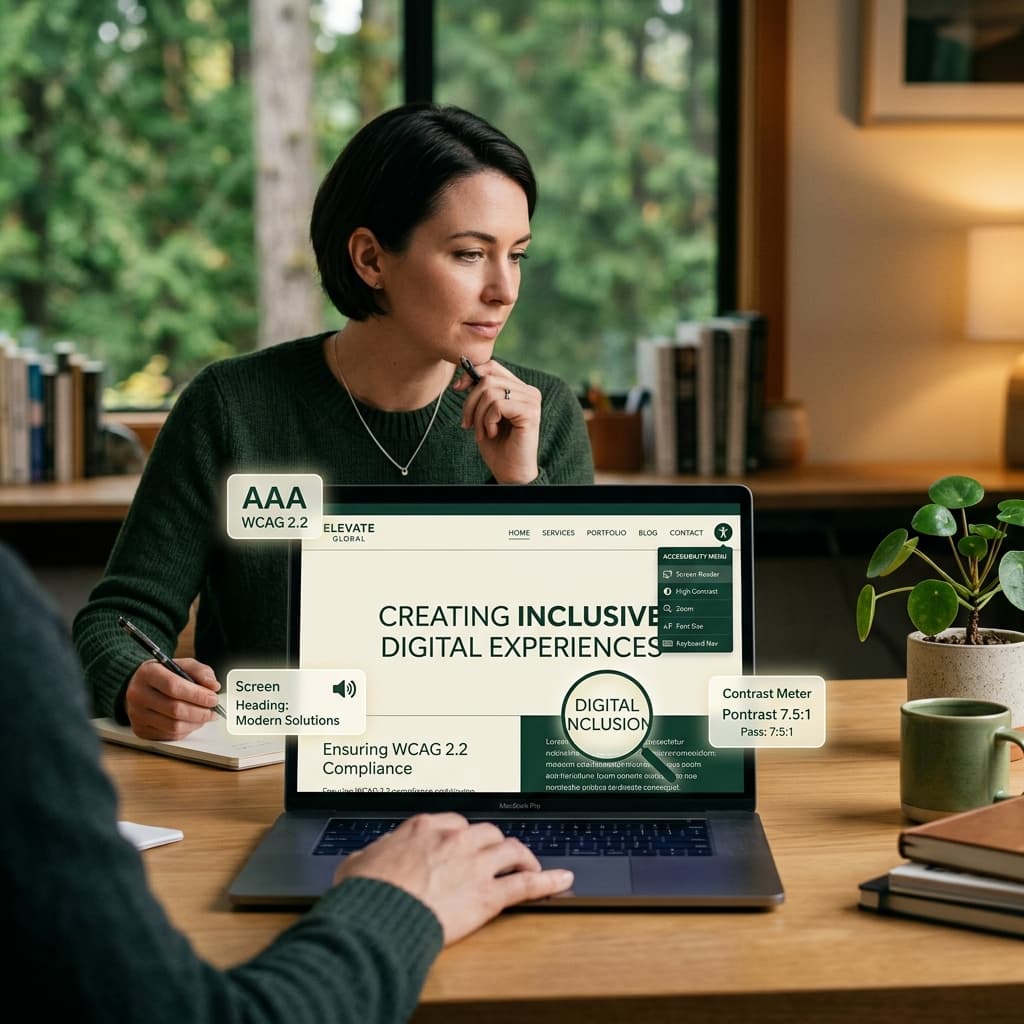
Quick answer
A small-business website should be usable with a keyboard, understandable with a screen reader, readable at sufficient contrast, and clear when forms contain errors. Start with your highest-value pages, combine an automated scan with manual checks, fix critical barriers first, and retest after every meaningful website change.
What ADA website compliance means for a small business
Title III of the Americans with Disabilities Act applies to businesses that are open to the public. The U.S. Department of Justice says inaccessible website features can prevent people with disabilities from accessing the goods, services, and privileges a business offers online. The DOJ does not currently prescribe one detailed technical standard for private-business websites, but it identifies the Web Content Accessibility Guidelines (WCAG) as useful technical guidance.
WCAG 2.2 organizes accessibility around four principles: content must be perceivable, operable, understandable, and robust. Level AA is a practical target for most business websites. It is important to be precise, though: an automated scan can identify many common failures, but it cannot certify that an entire website conforms or eliminate legal risk.
The small-business ADA website compliance checklist
Work through this list on the pages customers use to learn, buy, book, apply, or contact you. For a restaurant that may be the menu and reservation flow; for a clinic, the appointment form; for a retailer, product pages and checkout.
- Images: Give informative images concise alternative text. Use an empty alt attribute for decorative images so screen readers can skip them.
- Headings: Use one descriptive H1 and a logical H2/H3 hierarchy. Do not choose heading levels only for their visual size.
- Keyboard access: Reach every link, button, menu, field, dialog, and checkout control with Tab, Shift+Tab, Enter, Space, and arrow keys where appropriate.
- Visible focus: Make the currently focused control easy to see, and ensure sticky headers or pop-ups do not cover it.
- Color contrast: Check text, icons, borders, and focus indicators against their backgrounds. Do not use color alone to communicate errors or status.
- Forms: Connect every field to a visible label, identify required fields in text, describe errors clearly, and move focus to important error messages when needed.
- Links and buttons: Use descriptive names such as “Download the accessibility report” instead of repeated “click here” labels.
- Zoom and reflow: Confirm the page remains usable at 200% browser zoom and on a narrow mobile viewport without hiding content or controls.
- Audio and video: Provide accurate captions for prerecorded video with speech and text alternatives for meaningful audio content.
- Page language and titles: Set the correct document language and give every page a unique, descriptive browser title.
- Motion and timing: Let users pause moving content, avoid unexpected changes, and provide enough time to complete important tasks.
- Help and feedback: Publish an accessible way for visitors to report a problem, and respond with an alternative way to complete the task while you investigate.
How to test the checklist without an accessibility team
Begin with an automated accessibility scan. It can quickly surface missing labels, invalid ARIA, contrast failures, duplicate IDs, and structural problems across multiple pages. Treat the output as a prioritized lead list rather than a pass-or-fail certificate.
Then perform a short manual review. Put away the mouse and complete the main customer journey with a keyboard. Increase browser zoom to 200%. Check the site on a phone-sized screen. Turn on VoiceOver on macOS or iOS, or Narrator on Windows, and listen to the page title, headings, navigation, form labels, and error messages. The DOJ specifically recommends pairing automated checking with manual checks because a clean automated report does not necessarily mean a page is accessible.
Which accessibility problems should you fix first?
Prioritize by customer impact, not by the raw number of findings. A keyboard trap in checkout is more urgent than a minor issue on an old article. Start with blockers on revenue and service paths, then serious recurring problems in shared components such as navigation, forms, and templates.
- First: barriers that stop someone from buying, booking, logging in, contacting you, or understanding essential information.
- Next: failures repeated across the site, especially navigation, form fields, focus states, and low-contrast brand colors.
- Then: page-specific content issues such as weak alt text, unclear link names, and inconsistent headings.
- Finally: document the fix, the affected pages, who checked it, and the retest date so regressions are easier to spot.
A realistic 30-day accessibility plan
In week one, inventory your customer journeys and scan the most important templates. In week two, fix blockers and shared components. In week three, manually test the primary flows and ask a developer or accessibility specialist to review anything you cannot verify. In week four, publish an accessibility contact method, record the work completed, and schedule recurring scans.
Accessibility is ongoing because content, plugins, themes, and checkout tools change. Re-scan after releases and review the most important journeys on a regular schedule. Adasee’s free scan gives you a plain-English starting point and helps identify which common issues deserve attention first.
Authoritative resources
Use the DOJ’s Guidance on Web Accessibility and the ADA for the legal framework and the W3C WCAG 2.2 Recommendation for the technical success criteria. This checklist is educational information, not legal advice or a statement that any website complies with the law. Read the DOJ guidance and review WCAG 2.2.
Frequently asked questions
Does a small business need an ADA-compliant website?
The DOJ states that Title III covers businesses open to the public and that the goods, services, and activities they provide online must be accessible. Application can depend on the business and jurisdiction, so ask a qualified attorney about your specific legal obligations.
Can an automated scanner certify ADA compliance?
No. Automated tools find many common technical failures but cannot evaluate every WCAG success criterion or every real user experience. Combine scanning with keyboard, zoom, screen-reader, and task-based manual testing.
How often should a small business scan its website?
Scan after meaningful design or content changes and on a recurring schedule. Frequently updated stores and booking sites benefit from weekly checks; a stable brochure site may need less frequent scans plus periodic manual review.